Images
An image is an artifact that depicts visual perception, such as a photograph or other two-dimensional picture, that resembles a subject—usually a physical object—and thus provides a depiction of it. In the context of signal processing, an image is a distributed amplitude of color.
Controlling size of images in CSS
Controlling the size and alignment of your images using CSS keeps rules that affect the presentation of your page in the CSS and out of the HTML markup.
We can resize the image by specifying the width and height of an image. A common solution is to use the max-width: 100%; and height: auto; so that large images do not exceed the width of their container. The max-width and max-height properties of CSS works better, but they are not supported in many browsers.

Aligning an images
- left: It sets the alignment of image to the left.
- right: It sets the alignment of image to the right.
- middle: It sets the alignment of image to the middle.
- top: It sets the alignment of image to the top.
- bottom: It sets the alignment of image to the bottom.
Repeating Images
The background-repeat property sets if/how a background image will be repeated. By default, a background-image is repeated both vertically and horizontally. Tip: The background image is placed according to the background-position property.
- repeat : tile the image in both directions. This is the default value.
- repeat-x : tile the image horizontally.
- repeat-y : tile the image vertically.
- no-repeat : don’t tile, just show the image once.
- space : tile the image in both directions. …
- round : tile the image in both directions.
body { background-image: url(“images/tulip.gif”); background-repeat: no-repeat; background-attachment: fixed;} CSS chapter-16/background-attachment.html
Imagen Rollover & sprites
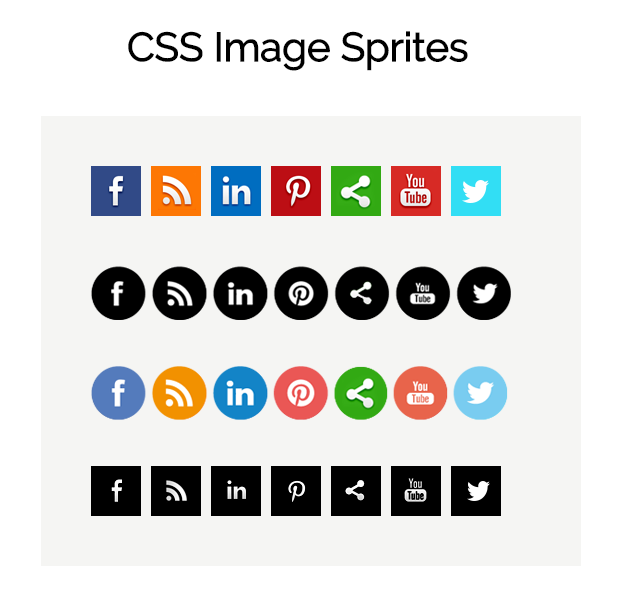
An image sprite is a collection of images put into a single image. A web page with many images can take a long time to load and generates multiple server requests. Using image sprites will reduce the number of server requests and save bandwidth.
Practical Information
Search Engine Optimization
SEO is a huge topic and several books have been written on the subject. The following pages will help you understand the key concepts so you can improve your website’s visibility on search engines.
on-Page vs. Off-Page SEO .
Here’s a quick refresher on the difference between on- and off-page SEO.
On-page SEO generally includes factors like:
- Page titles and headings
- Images
- Meta descriptions and tags
- URL
- Fast-loading pages
- High-quality and regularly updated content
Internal linking
Off-page SEO really comes down to one major factor, which is high-quality backlinks to your site. The more of these you can get, the better, but, at the end of the day, it’s really more about quality than quantity because you want backlinks from sites with higher domain-authority ratings.

Video and Audio APIs
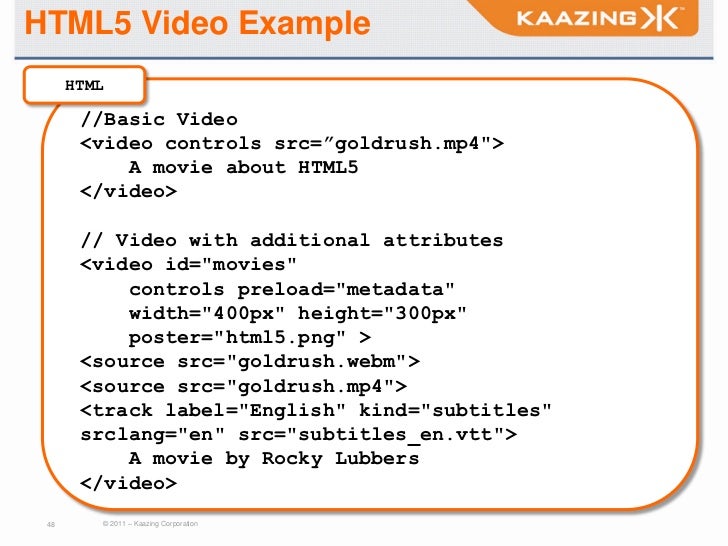
HTML5 comes with elements for embedding rich media in documents — <video and <audio — which in turn come with their own APIs for controlling playback, seeking.
The whole player is wrapped in a div> element, so it can all be styled as one unit if needed. The video> element contains two source> elements so that different formats can be loaded depending on the browser viewing the site. The controls HTML is probably the most interesting: We have four button>s — play/pause, stop, rewind, and fast forward. Each button> has a class name, a data-icon attribute for defining what icon should be shown on each button (we’ll show how this works in the below section), and an aria-label attribute to provide an understandable description of each button, since we’re not providing a human-readable label inside the tags. The contents of aria-label attributes are read out by screenreaders when their users focus on the elements that contain them. There is also a timer div>, which will report the elapsed time when the video is playing. Just for fun, we are providing two reporting mechanisms — a span> containing the elapsed time in minutes and seconds, and an extra div> that we will use to create a horizontal indicator bar that gets longer as the time elapses.
Flash
- Choose File > Publish. …
- Open the HTML document that Flash created, view the HTML source and copy the code into your HTML page where you want your Flash movie.
- Be sure that you have the “somefilename. …
- Type in the address of the HTML file in your browser and look at your first Flash movie.
QUIZ :
- what is SEO …………..?
- what is image ………….?
- how flash work ?
for more info please visit my github qusaiqeisi
best regard