Layout
HTML layouts provide a way to arrange web pages in well-mannered, well-structured, and in responsive form or we can say that HTML layout specifies a way in which the web pages can be arranged. Web-page layout works with arrangement of visual elements of an HTML document.
A webpage layout is very important to give better look to your website. It takes considerable time to design a website’s layout with great look and feel.Now-a-days, all modern websites are using CSS and JavaScript based framework to come up with responsive and dynamic websites but you can create a good layout using simple HTML tables or division tags in combination with other formatting tags. This chapter will give you few examples on how to create a simple but working layout for your webpage using pure HTML and its attributes.
HTML Layouts - Using DIV, SPAN
The <div> element is a block level element used for grouping HTML elements. While the <div> tag is a block-level element, the HTML element is used for grouping elements at an inline level.
Although we can achieve pretty nice layouts with HTML tables, but tables weren’t really designed as a layout tool. Tables are more suited to presenting tabular data.
Note − This example makes use of Cascading Style Sheet (CSS), so before understanding this example you need to have a better understanding on how CSS works.
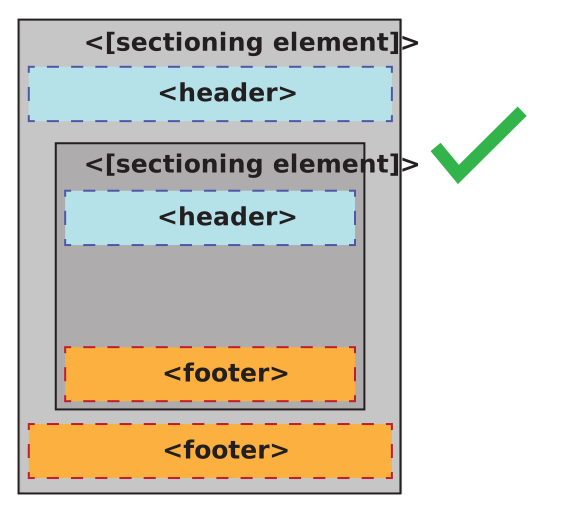
- nav> – Equivalent to role=”navigation”. Major site navigation that consistently appears frequently across the site. Examples include the primary navigation, secondary navigation, and in-page navigation.
- aside> – Equivalent to role=”complementary”. Content that is only tangentially related (or not related) to the main content. Think of something like a sidebar with supplementary information, a note within an article, or the outer container for a list of related articles at the bottom of a blog post.
- article> – Equivalent to role=”article”. Content that is self-contained in that it makes sense on its own when taken out of context. That could mean a widget, a blog post or even a comment within a blog post.
- section> – Equivalent to role=”region”. Content that needs extra context from its parent sectioning element to make sense. This is a generic sectioning element that is used whenever it doesn’t make sense to use the other more semantic ones.

The <main> element
There is a very important semantic element that I used in the markup above that I haven’t covered yet and that is the main> element. The main> element represents the primary content of the page. It is not supposed to feature any side bars or navigation elements in it. You also must not have more than one main element on the page unless all other main elements on the page have a hidden attribute applied to them (this is for the sake of SPAs). The main> element is not a sectioning element. This means that it doesn’t help contribute to the document outline algorithm and it can’t feature a header> or footer> element as a direct child. It is a landmark element though so screen reader users are able to navigate to it quite easily. I’m not 100% sure if using article> in the <main> element like I have done above is necessary. Semantically, it does make sense. The main content is self-contained, thus justifying use of the <article> element in this way. From a document outline algorithm perspective, the <article> element also helps with the document structure.
quize
- what is layout ?
- what is nav ?
- what is footer ?
for more info please visit my github qusaiqeisi
best regard